- State the unit relationship between Blender and Unreal from memory, without looking it up.
- Apply transforms and explain what that actually changes in the file.
- Export an object, import it, and verify its size in the engine rather than assuming it.
- Recognize the two signature import failures — wrong scale and wrong orientation — on sight.
Brief · 15 min One number to memorise
Blender measures the world in meters. Unreal measures it in centimeters. One Blender meter must arrive as 100 Unreal units. That sentence is the whole contract, and it explains most of the confusion you are about to have.
This matters more in this course than it looks. Weeks 1 and 2 put you on the real earth through Cesium, where a building is the size the building actually is — you do not get to fudge it. Weeks 3 and 4 ask you to model your Project 2 house in Blender, bring it into Twinmotion, and check it against its drawings. If your Blender assets arrive a hundred times too large, none of those exercises mean anything. Scale is not a preference here; it is the subject.
Why "just fix it in the import settings" is the wrong habit
Every exporter has a scale field, and every tutorial sets it to a slightly different number, because the defaults have drifted across versions of both programs. If you memorise a magic checkbox you will be confidently wrong at some point, and confidently wrong costs more than uncertain.
What to memorise instead is the check. Import the thing and measure it. Two readings tell you almost everything:
- 100× off in either direction — a unit problem, not a modeling problem.
- Lying on its face, or rotated a quarter turn — the forward/up axis pair, or an unapplied rotation on the object.
Build · 30 min The two-meter cube
This is a deliberately trivial object, because the point is not the object. The point is that you have personally watched the number arrive correctly, once, so that every later failure is measured against something you trust.
- Make a cube and set it to exactly 2 m
Add → Mesh → Cube. Press N to open the sidebar and type the dimensions in. Exactly two meters on each axis — not "about two", not dragged to roughly the right size. You are building a measuring stick, and a measuring stick you eyeballed is not one.
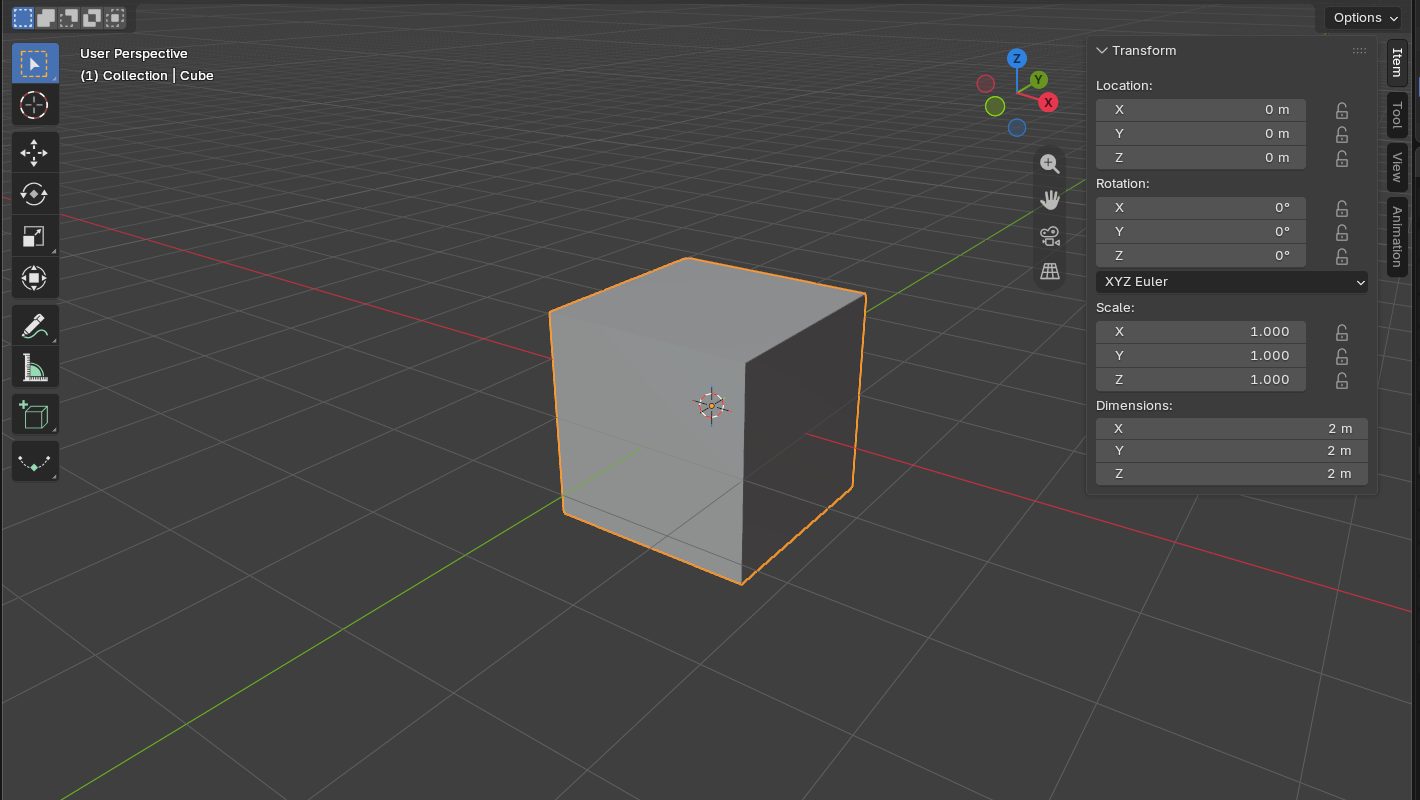
The default cube after typing 2 m into each Dimensions field: Scale 1.000, Dimensions 2 m. This is the state to export from. - Look at the Scale field before you touch anything else
If you sized the cube by scaling it in Object mode, Scale now reads something like 2.0, 2.0, 2.0 while Dimensions read 2 m. Those are two different claims about the same object, and that gap is where the trouble lives.
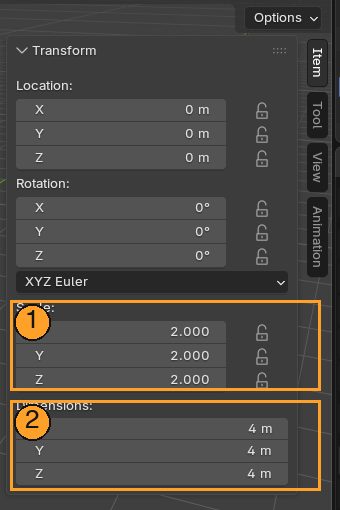
Before apply. The cube was doubled with S 2: 1 Scale reads 2.000 while 2 Dimensions read 4 m. Two claims about one object. 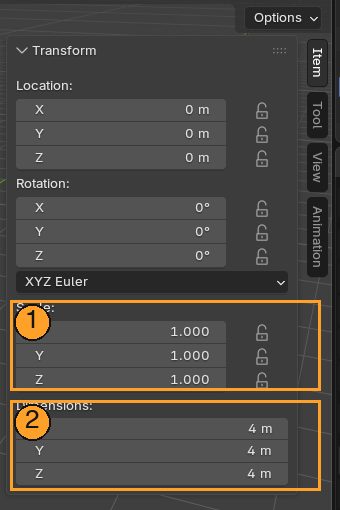
After Ctrl+A → All Transforms. 1 Scale is back to 1.000; 2 Dimensions are still 4 m. Nothing moved — the size now lives in the geometry. 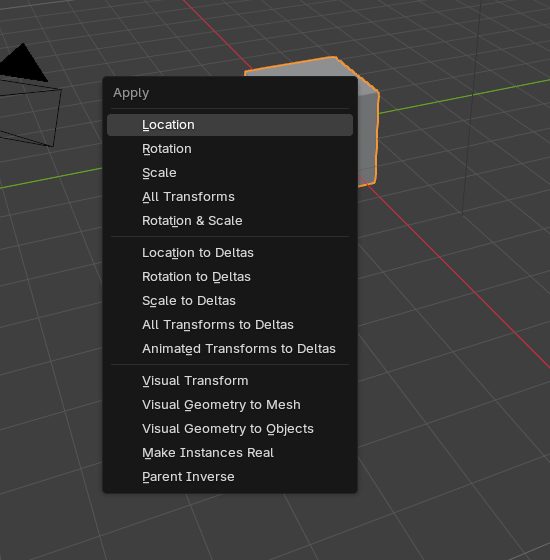
Ctrl+A over the viewport, Object mode. Choose All Transforms. - Apply transforms: Ctrl+A → All Transforms
Scale snaps back to 1, 1, 1 and the cube does not change size. That is the correct and slightly unsettling result. You have not resized anything — you have told Blender to stop storing the size as a multiplier and start storing it in the geometry itself.
- Export FBX
File → Export → FBX. Leave the defaults alone for now; you are testing the defaults. Name it something you will recognize in twenty minutes.
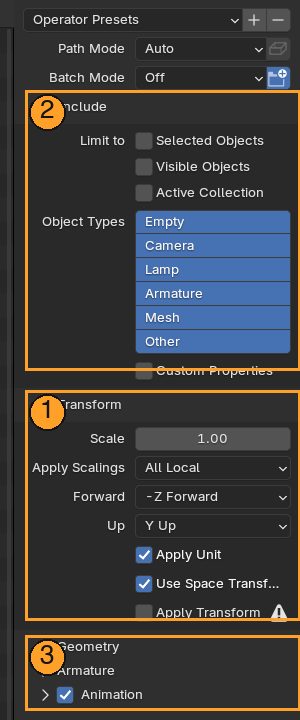
File → Export → FBX. 1 Transform: Scale 1.00, Forward −Z, Up Y, Apply Unit ticked — leave these alone. 2 Include: tick Selected Objects when you only want the one thing. 3 Geometry, Armature and Animation panels, collapsed; Day 5 opens two of them. - Import into Unreal and measure it there
Drag the FBX into the Content Browser, drop the mesh into a level, and read its size in the Details panel. It must read 200 units. Do not accept "looks about right" — open the panel and read the number.
- Sanity-check against something human
Drag in the default mannequin, or any UE character, and stand it beside your cube. The mannequin is roughly 180 cm tall, so your two-meter cube should be a shade taller than it is. This is the check you will use for the rest of the course, because it takes two seconds and needs no panels.
Now break it on purpose
Go back to Blender, scale the cube 2× in Object mode, and do not apply. Re-export, re-import, measure again. Watch exactly what goes wrong and what the Details panel says when it does.
This is worth the five minutes because you have now produced the failure deliberately, in calm conditions, with nothing at stake. In Week 8, when your terrain arrives wrong at 11pm, you will recognize the symptom instead of starting from zero.
An object carrying unapplied transforms looks completely normal in the viewport. The damage is invisible until something else reads the file — and then it breaks modifiers, breaks exports, and breaks armatures worst of all.
An armature with unapplied scale will animate perfectly in Blender and wrongly in Unreal, which is the single most demoralising bug in this whole pipeline because nothing you can see is wrong. Day 3 depends on you having this habit already.
What the N panel is actually telling you
| Field | What it means | What you want before export |
|---|---|---|
| Dimensions | How big the object appears right now, after all multipliers | The real-world size, in meters |
| Scale | A multiplier applied on top of the stored geometry | 1, 1, 1 |
| Rotation | A rotation applied on top of the stored geometry | 0, 0, 0 |
| Location | Where the object's origin sits in the scene | Somewhere deliberate — often the origin |
Scale and Rotation both reading their neutral values while Dimensions reads the size you want is the state you are aiming for. That state is "transforms applied".
- You can say the unit sentence out loud without checking: one Blender meter, one hundred Unreal units.
- Your cube measured 200 in Unreal, and you read that from the Details panel rather than assuming it.
- You broke it on purpose and saw the wrong number appear.
- Ctrl+A → All Transforms is in your fingers, not your notes.