- Move around the viewport and switch modes without stopping to think about it.
- Diagnose the four or five things that cause most beginner "it won't work" moments.
- State the unit relationship between Blender and Unreal from memory.
- Export an object, import it, and verify its size in the engine rather than assuming it.
Orientation · 15 min The keys that actually matter
Blender has hundreds of shortcuts and you need about six. Learn these properly now and you will spend the term making things rather than hunting through menus.
| Key | What it does | When it saves you |
|---|---|---|
| Tab | Switches between Object mode and Edit mode | Check this first when something won't work. Most "why can't I select that" moments are the wrong mode |
| G / R / S | Grab, rotate, scale | Constantly. Press, then move the mouse, then click to confirm |
| then X Y Z | Constrains that action to one axis | Whenever you want to move something in a straight line rather than approximately |
| N | Opens the sidebar with exact numbers | Any time "about right" is not good enough — which is most of this course |
| Shift+C | Resets the 3D cursor to the origin | When new objects start appearing in strange places |
| Numpad . | Frames the selected object | When your model vanishes. Select it in the outliner first, then this |
Nothing else needs memorising today. Everything you cannot remember is in a menu, and looking it up twice is how it sticks.
Brief · 5 min One number to memorise
Blender measures the world in meters. Unreal measures it in centimeters. One Blender meter must arrive as 100 Unreal units.
That sentence explains most of the "why is my model enormous" problems you will have this term, and it is worth being able to say without looking it up.
Why "just fix it in the import settings" is the wrong habit
Every exporter has a scale field and every tutorial sets it to a slightly different number, because the defaults have drifted across versions of both programs. Memorise a magic checkbox and you will be confidently wrong at some point.
Memorise the check instead. Import the thing and measure it. Two readings tell you almost everything: 100× off is a unit problem, and lying on its face is the forward/up axis pair or an unapplied rotation.
Build · 25 min The two-meter cube
A deliberately trivial object, because the point is not the object. The point is that you have personally watched the number arrive correctly, once, so every later failure is measured against something you trust.
- Make a cube and set it to exactly 2 m
Add → Mesh → Cube, then N and type the dimensions in. Exactly two meters — not dragged to roughly the right size. You are building a measuring stick, and a measuring stick you eyeballed is not one.
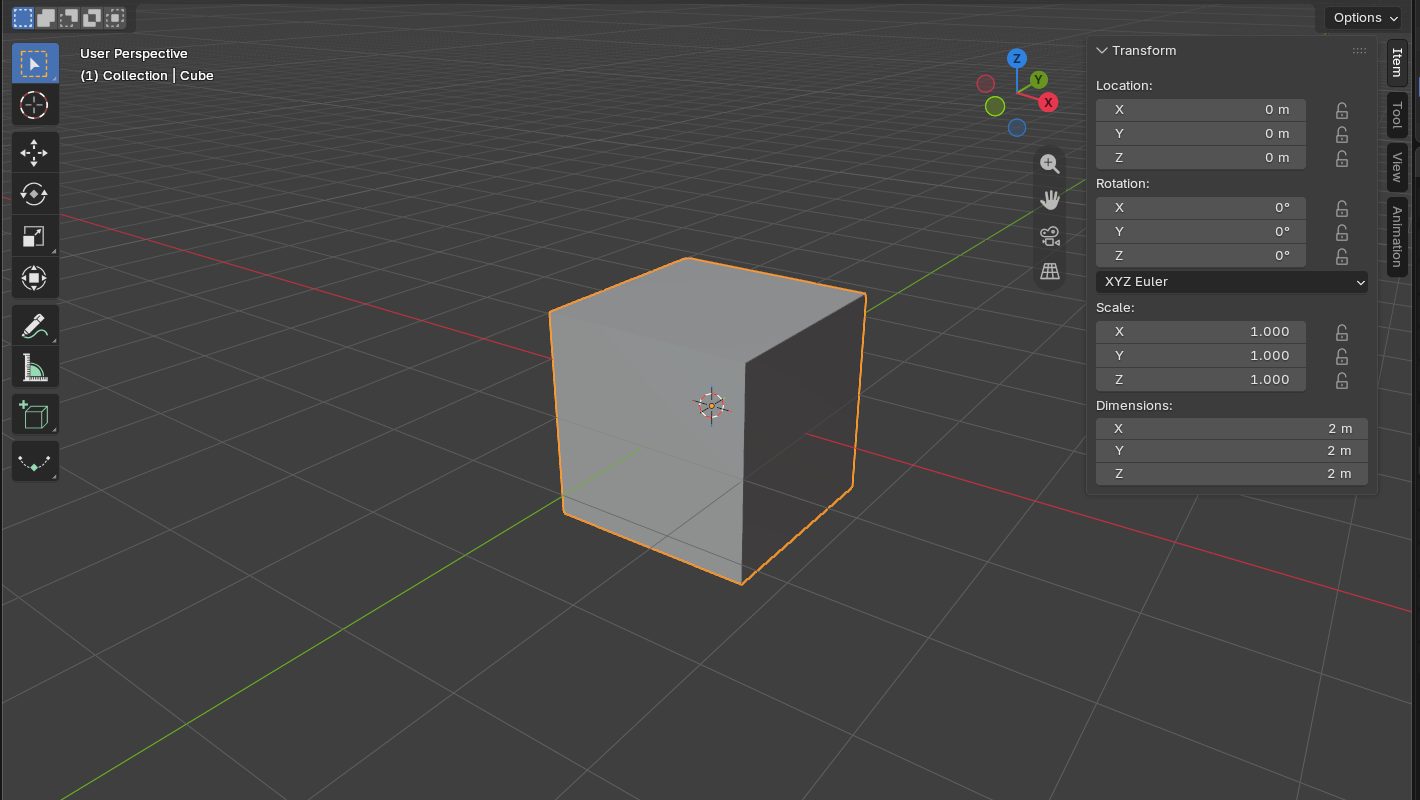
The default cube after typing 2 m into each Dimensions field: Scale 1.000, Dimensions 2 m. This is the state to export from. - Look at the Scale field before touching anything else
If you sized it by scaling in Object mode, Scale reads something like 2.0, 2.0, 2.0 while Dimensions read 2 m. Those are two different claims about the same object, and that gap is where the trouble lives.
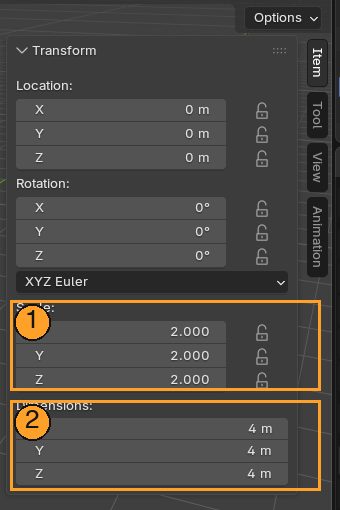
Before apply. The cube was doubled with S 2: 1 Scale reads 2.000 while 2 Dimensions read 4 m. Two claims about one object. 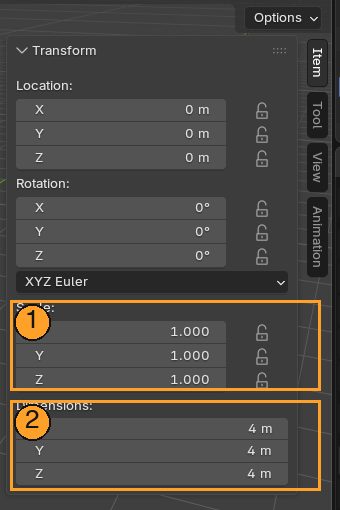
After Ctrl+A → All Transforms. 1 Scale is back to 1.000; 2 Dimensions are still 4 m. Nothing moved — the size now lives in the geometry. - Apply transforms: Ctrl+A → All Transforms
Scale snaps back to 1, 1, 1 and the cube does not change size. That is correct, and slightly unsettling the first time. You have not resized anything — you have told Blender to stop storing the size as a multiplier and store it in the geometry itself.
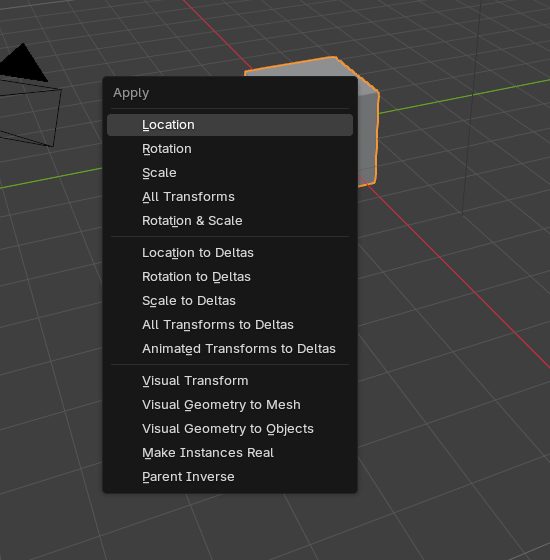
Ctrl+A over the viewport, Object mode. Choose All Transforms. - Export FBX, import to Unreal, and measure it there
Leave the exporter defaults alone; you are testing the defaults. Drop the mesh into a level and read its size in the Details panel. It must read 200 units. Open the panel and read the number — do not accept "looks about right".
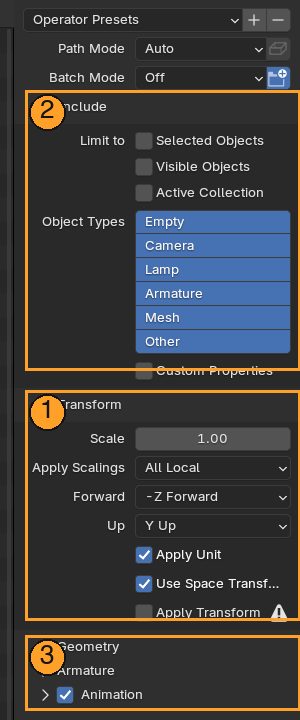
File → Export → FBX. 1 Transform: Scale 1.00, Forward −Z, Up Y, Apply Unit ticked — leave these alone. 2 Include: tick Selected Objects when you only want the one thing. 3 Geometry, Armature and Animation panels, collapsed; Day 6 opens two of them. - Sanity-check against something human
Drag in the default mannequin and stand it beside your cube. It is roughly 180 cm, so your two-meter cube should be a shade taller. This is the check you will use for the rest of the course, because it takes two seconds and needs no panels.
Now break it on purpose
Back in Blender, scale the cube 2× in Object mode and do not apply. Re-export, re-import, measure again. Watch exactly what goes wrong.
Five minutes well spent: you have produced the failure deliberately, in calm conditions, with nothing at stake. In Week 8, when your rig arrives wrong at 11pm, you will recognize the symptom instead of starting from zero.
Unapplied scale is invisible until it bites, and then it breaks modifiers, breaks exports, and breaks rigs worst of all. An armature with unapplied scale animates perfectly in Blender and wrongly in Unreal, with nothing visibly wrong to point at.
Getting into the habit now costs nothing. Not having it costs an afternoon in Week 8.
- Tab, G/R/S and N are in your fingers rather than your notes.
- You can say the unit sentence without checking: one Blender meter, one hundred Unreal units.
- Your cube measured 200 in Unreal, read from the Details panel.
- You broke it on purpose and saw the wrong number appear.